Getting Started
MCP Inspector
Visual debugging tool integrated into Nuxt DevTools
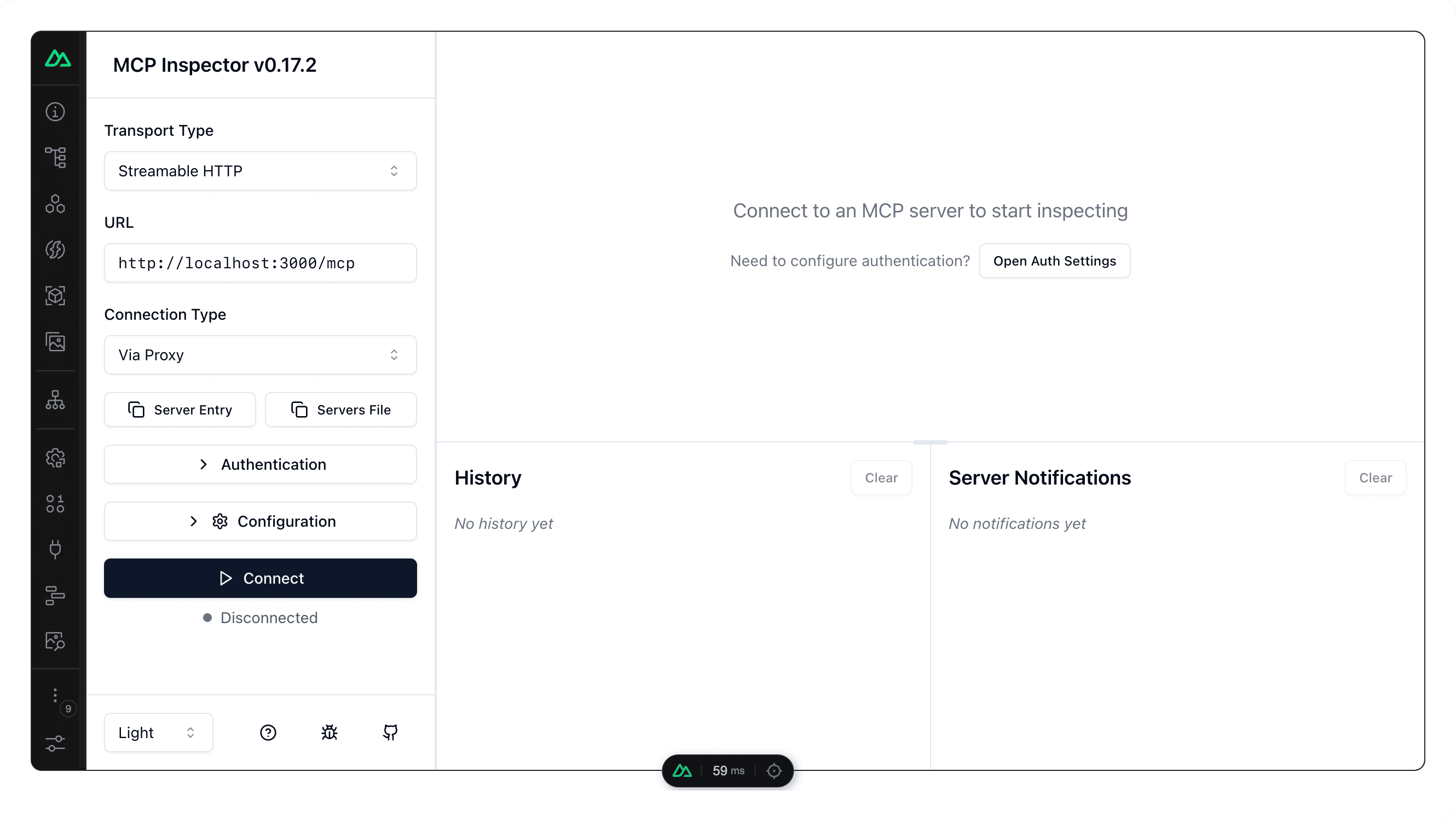
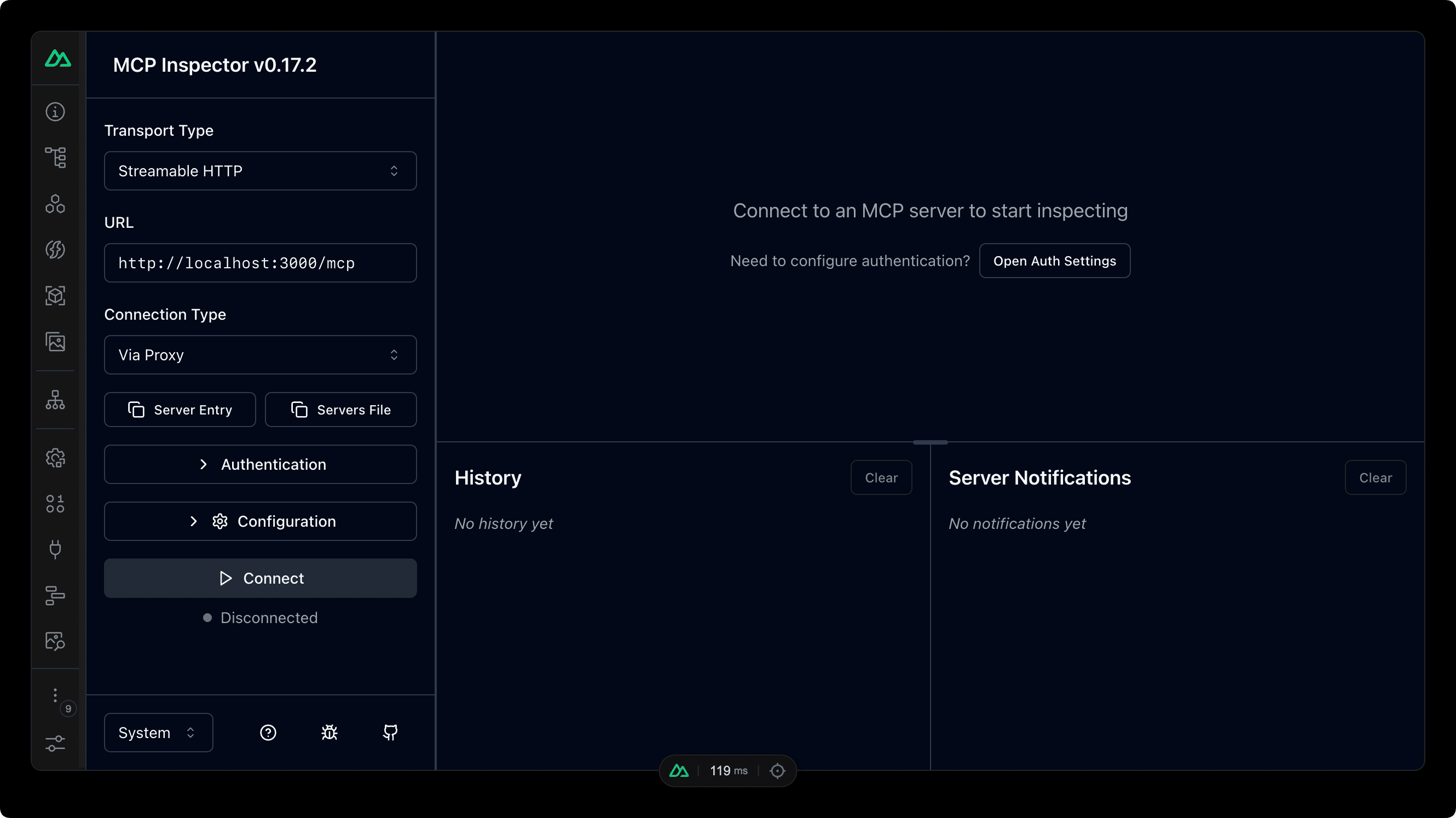
The module includes a built-in integration with the MCP Inspector, a visual debugging tool that allows you to interactively test and debug your MCP server directly from Nuxt DevTools.
How to use it
- Enable DevTools - Make sure DevTools are enabled in your
nuxt.config.ts:nuxt.config.tsexport default defineNuxtConfig({ modules: ['@nuxtjs/mcp-toolkit'], devtools: { enabled: true }, }) - Launch - Open Nuxt DevTools and navigate to the MCP Inspector tab in the Server section, then click Launch Inspector.
- Test - Use the inspector to browse tools, resources, and prompts, test them with custom parameters, and view request/response history.
The inspector automatically connects to your MCP server endpoint with the correct configuration - no setup needed.
Why use it?
The inspector provides a visual interface to:
- Browse all available tools, resources, and prompts
- Test tools with custom parameters and see responses
- View request/response history for debugging
- Debug connection issues and errors
It's the easiest way to test and validate your MCP server during development.
Configuration
By default, the inspector uses ports 6274 (UI) and 6277 (proxy). To customize them:
CLIENT_PORT=8080 SERVER_PORT=9000 npm run dev
For advanced configuration options, see the MCP Inspector documentation.